
Free tool
Virtual Staging Disclosure Label: Add “Virtually Staged” to Photos Free
A virtual staging disclosure label is a line of text such as “Virtually staged” placed on a listing photo, so that anyone who sees the photo knows the furniture was added digitally.
Add your photos, set the text, the corner and the size, and download the labeled copies without anything leaving your browser.
- Up to 20 photos at a time
- 4 corners, 3 sizes
- Runs in your browser
- No account, no upload
JPG, PNG or WebP · up to 20 photos at a time
Free, no account. Your photos are processed in this browser and never uploaded.
What this kind of photo looks like
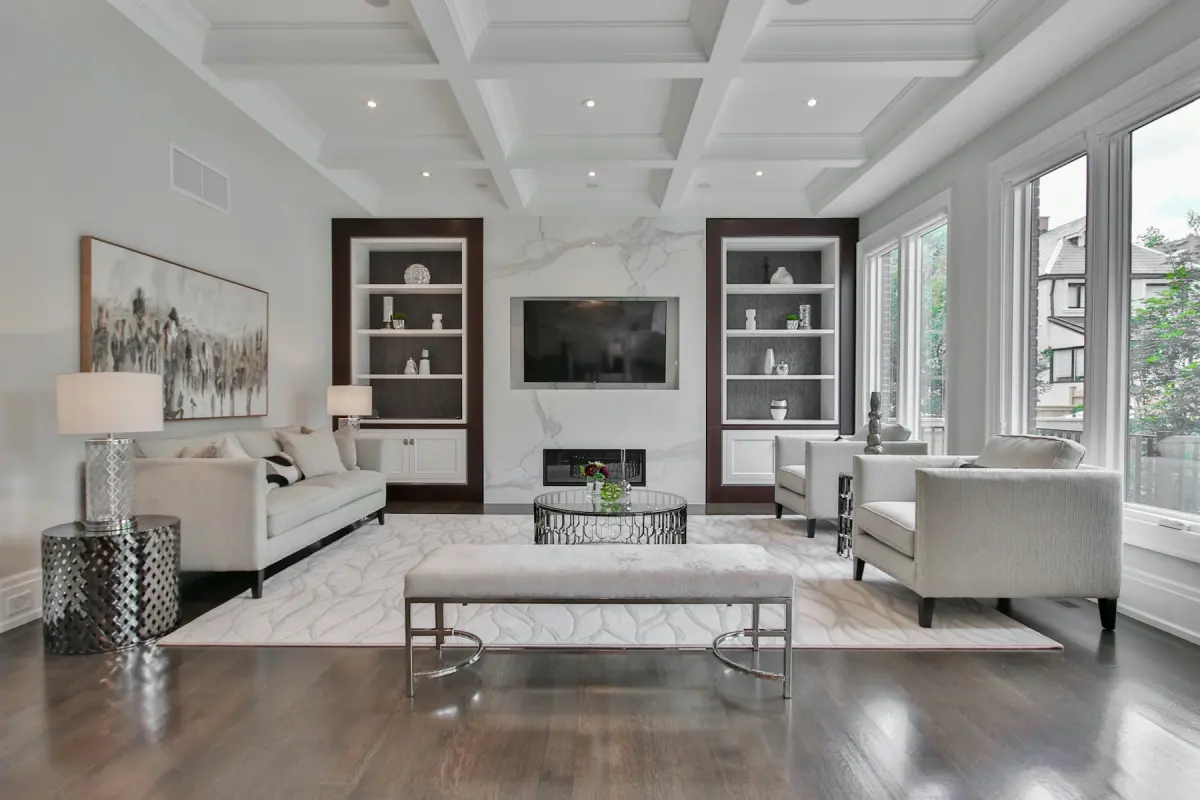 Transitional
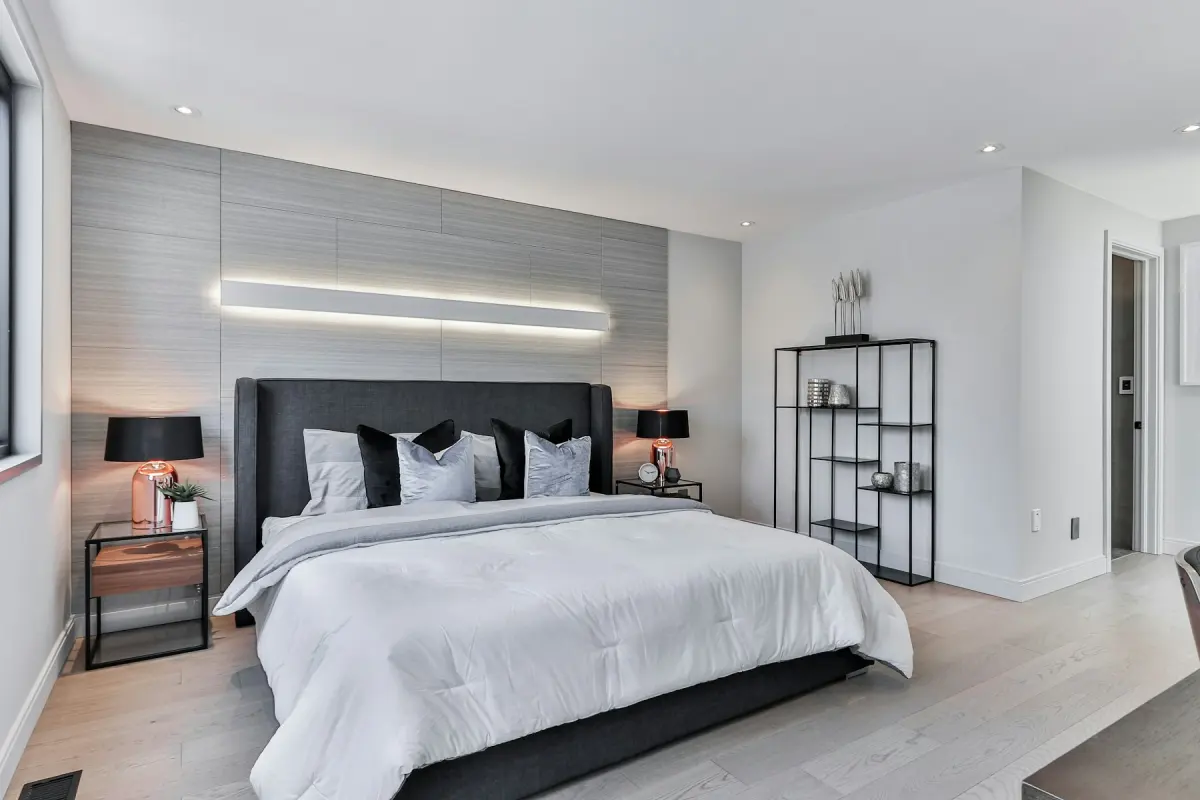 Modern
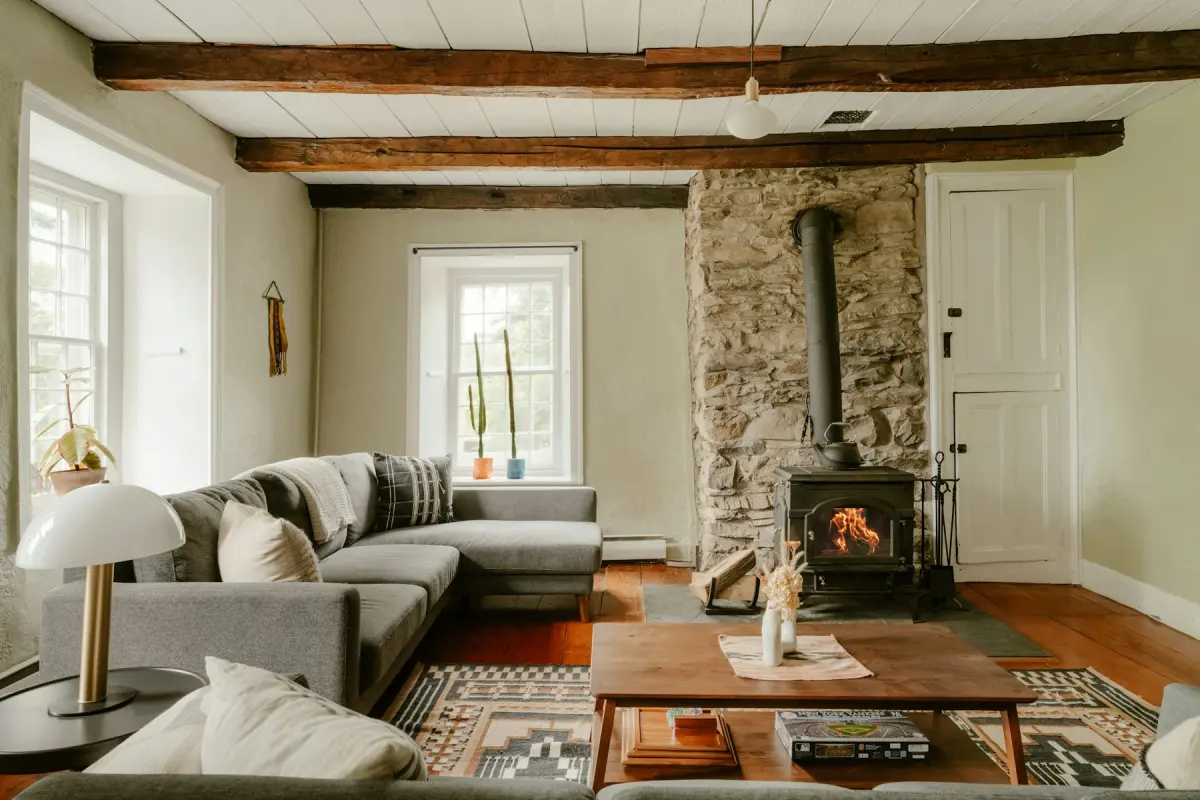 Farmhouse
How it works
- 1
Add your photos
Choose up to 20 photos at a time. They open in your browser and are not uploaded anywhere.
- 2
Set the label text
Type the wording you need, for example “Virtually staged”. If your MLS or portal asks for particular wording, use theirs.
- 3
Pick a corner and a size
Place the label in any of the four corners and choose one of three sizes, so it can be read without covering what the photo is there to show.
- 4
Download the labeled photos
Save the labeled copies and use those in your listing. The original files on your device are not changed.
Settings and tips
- What the tool does
- It adds one text label to each photo. It does not stage or retouch the photo, and no AI is involved.
- Where the photos go
- Nowhere. The work happens in your browser, so there is no upload, no account and no credits.
- Photos staged elsewhere
- It does not matter where a photo was staged. Use the tool on photos from Virtual Staging Maker, from another staging service or from a designer.
- Choosing a corner
- Pick the corner with the plainest background: a stretch of floor, wall or ceiling. Avoid the corner that holds a fireplace, a window or another feature buyers look for.
- Choosing a size
- Look at the labeled photo at the size your portal shows it. If you cannot read the label there, go up a size.
- If you staged the photo here
- The generator has a checkbox at download that adds “Virtually staged” (or “Digitally edited” for edits that add no furniture) in the lower-left corner. Use this tool when you need another corner, another size or other wording.
Good for
- Agents whose MLS or portal asks for a label on virtually staged photos
- Photographers delivering staged and unstaged versions of the same room
- Property managers and landlords posting staged photos of vacant units
- Owners selling by themselves who want to be upfront about edited photos
- Anyone holding staged photos from another service that came without a label
Not the right fit
- Staging a room. This tool only adds text; to put furniture in an empty room use the Virtual staging mode of the generator, which uses credits.
- More than 20 photos in one go. Label a larger set in groups of up to 20.
- A logo watermark. The tool adds a text label, not a graphic, and it does not stop a photo from being copied.
- A complete disclosure on its own. Your MLS or portal may also want a note in the listing description or the original photo next to the staged one; a label does not replace either.
What a disclosure label should say
“Virtually staged” is a common wording, and it is the one the generator on this site uses for staged photos. It tells a buyer in two words that the furniture in the photo is not in the room.
If your MLS or portal prescribes its own wording, type that instead, exactly as written. If the photo shows more than added furniture, say what it shows: a renovation preview is better labeled “Virtual renovation” than “Virtually staged”.
Keep it short. One line that can be read at a glance does the job; a paragraph in a corner does not.
Where to put the label on the photo
The tool offers four corners. The lower-left corner is where the generator’s own label goes, so use it if you want every photo in a listing to match.
Otherwise choose per photo. The label should sit on a calm part of the photo, clear of the things the photo is selling.
Rules differ by MLS, portal, state and country, and they may cover placement and size too. Check yours before you label a whole set.
When a virtually staged photo needs a label
Many MLSs and portals allow virtual staging when it is disclosed and the property itself is not misrepresented. What counts as disclosure differs by MLS, portal, state and country, so read the rules that apply to your listing. This page is not legal advice.
A label on the photo stays with the photo wherever it is shown. A line in the listing description does not.
Your photos stay on your device
The label is added by your own browser. Photos are not uploaded to Virtual Staging Maker, and you do not need an account. That also means there is nothing to get back from us later: keep the labeled files you download.