
For listing agents
Virtual Staging for Real Estate Agents
Virtual staging for real estate agents turns the photos of a vacant listing into furnished rooms, so buyers can see how each space is used.
Upload one photo of an empty room, choose the room type and a style, and press Generate.
What this kind of photo looks like


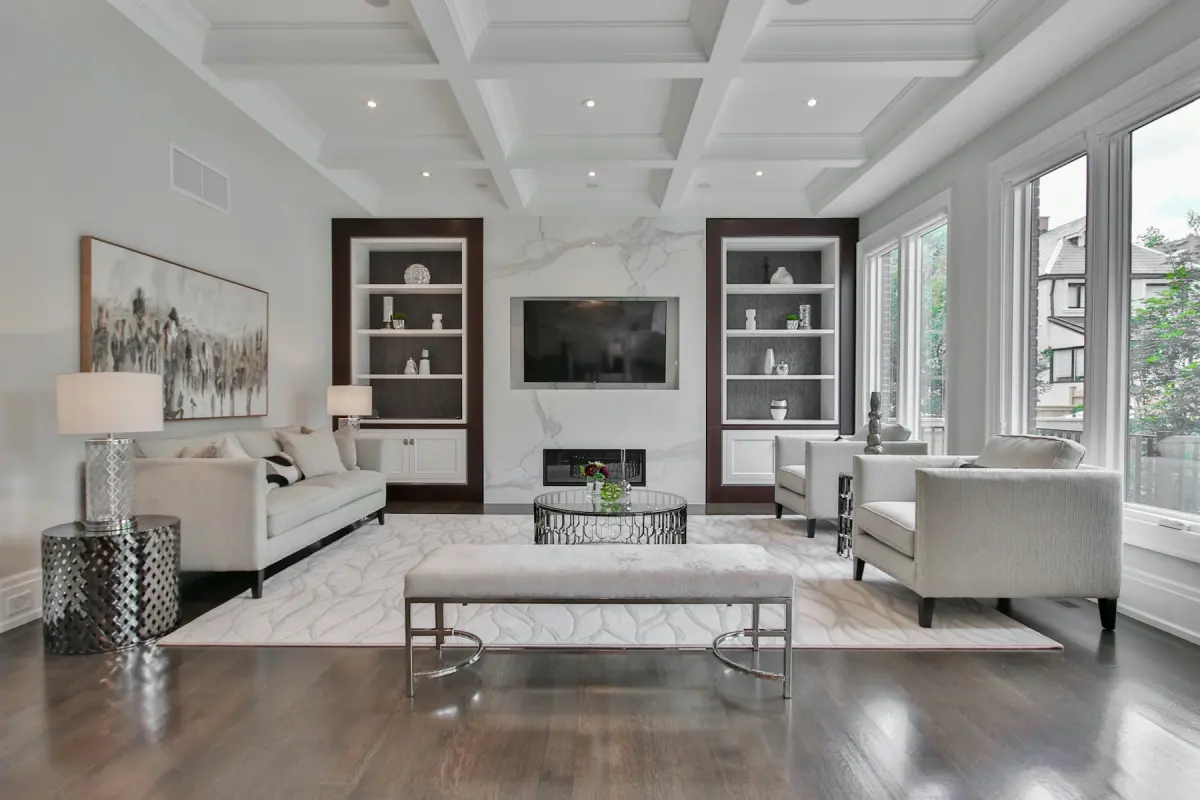 Transitional
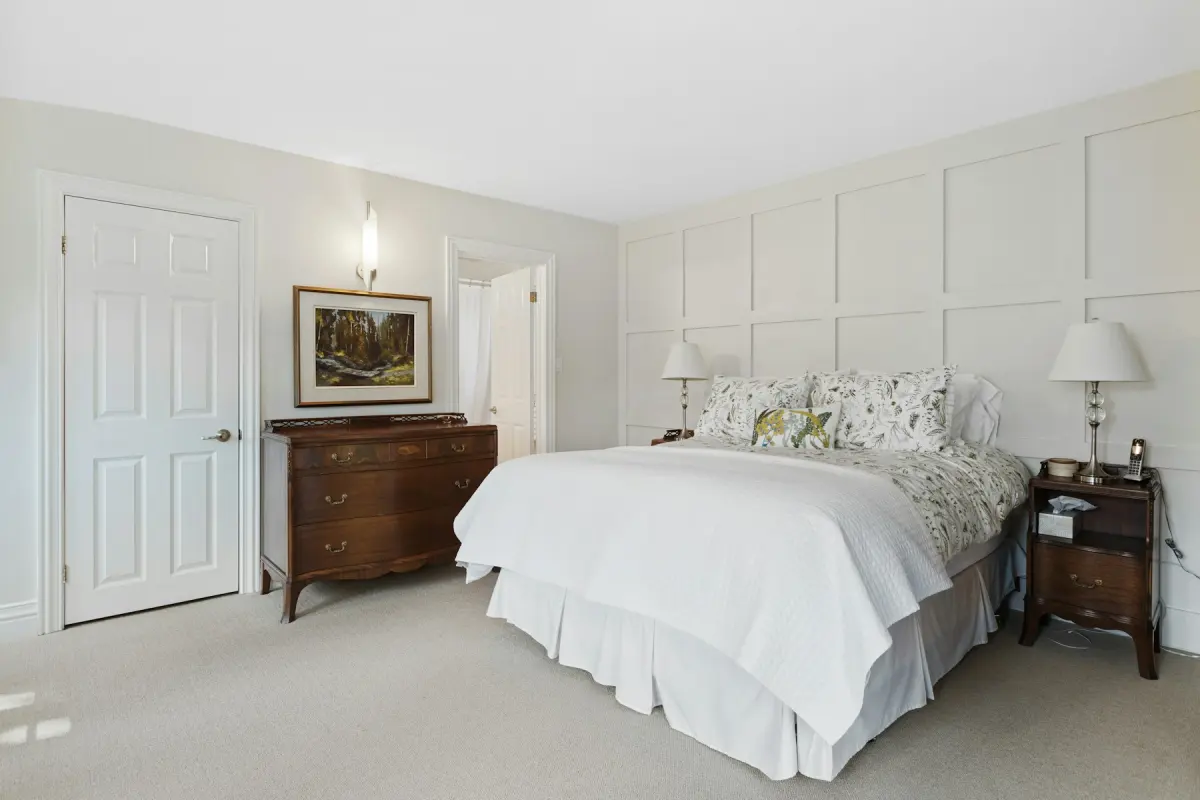 Traditional
Recommended settings
| What to do | Virtual staging for empty rooms. If the seller's furniture is still there, run Remove furniture first. |
|---|---|
| Room | Living room first, then Bedroom, Dining room and Kitchen |
| Style | Transitional, and the same style in every room of the listing |
| Output size | 2K for the MLS and portals; 4K for print and brochures |
| Note | Optional, up to 300 characters, e.g. “a sectional facing the fireplace” |
How it works
- 1
Shoot each empty room
Take one horizontal photo per room from a corner, in daylight, with the floor in view. Save it as a JPG, PNG or WebP of up to 15 MB.
- 2
Stage the main rooms
Upload a photo, keep Virtual staging selected, set Room and Style, and press Generate. It is one photo per render.
- 3
Compare with the original
Drag the before/after slider and check that walls, windows, doors and floors are as you shot them. If something moved, render again.
- 4
Download with the label
Tick the checkbox to add a “Virtually staged” label in the lower-left corner, then press Download. Keep the empty original in the listing file.
- 5
Disclose it in the listing
Read your MLS rules and mention the staging wherever they ask for it, before the photos go live.
A vacant listing, room by room
An empty room gives a buyer nothing to measure against. In a photo it is hard to tell whether a king bed fits the main bedroom or where a dining table would go. A staged photo answers that before the showing.
You do not need to stage every frame. Pick the rooms that sell the house: the living room, the main bedroom, the dining area, and one spare room shown as a Home office or a Nursery. Leave bathrooms, hallways and closets as shot.
Stage one angle per room. Virtual Staging Maker renders each photo on its own and does not keep furniture identical across different photos of the same room, so two staged angles of one living room would show two different sofas. Use the staged photo as the lead shot of that room and leave the other angles empty.
Which style to choose for a listing
There are 12 styles. This page opens the generator on Transitional, a neutral middle between traditional and modern that suits most resale homes. Modern fits newer condos and townhomes. Farmhouse and Coastal fit when the house and its location already point that way, and Luxury needs finishes that can carry it.
Pick one style and use it for every room in the listing, so the photos read as one home. If you want to see another direction, render the living room twice and decide before you do the rest: each press of Generate is a new render and uses credits.
The Note is for the one thing you want to control, in up to 300 characters: “a sectional facing the fireplace” or “king bed between the windows”. It cannot place a specific product from a shop.
Disclosure and MLS rules
Many MLSs and listing portals allow virtual staging when it is disclosed and the property itself is not misrepresented. The rules differ by MLS, portal, state and country, so read your own MLS rules before you upload.
Two things make disclosure easier here. When you download, a checkbox adds a “Virtually staged” label in the lower-left corner of the file. For photos you already have, including ones staged somewhere else, the free Virtual staging disclosure label tool marks up to 20 photos at a time in your browser, in any of four corners and three sizes, with no account and no credits.
Staging adds furniture. It must not change the property. Do not use any mode to hide cracks, stains, damage, power lines or a neighboring building, or to add something the house does not have, such as a view or an extra window. That misrepresents the listing and is against the content policy.
Occupied rooms and the front photo
Not every listing is empty. When the seller's furniture is still in the room, Remove furniture empties it and leaves built-in things such as kitchen cabinets, appliances, fireplaces and ceiling lights. You can then stage the empty result, which makes two renders. When the seller still lives there and the furniture is fine, Declutter takes out loose items and personal things and keeps the furniture where it is.
For the front photo, Day to dusk turns a daytime exterior into a twilight shot with a dusk sky and warm light in the windows. Blue sky replaces a gray sky, and Green lawn tidies brown or patchy grass. Ask your MLS whether edited exteriors need the same disclosure as staged rooms.
Not the right fit
- Staging one room from several angles with matching furniture: each photo is rendered on its own. Stage one angle per room and leave the others empty.
- Uploading a whole listing in one go: there is no batch upload. Render the rooms that matter, one photo at a time.
- Video tours, 3D tours, 360° panoramas or floor plans: Virtual Staging Maker edits still photos only. Use a tour or floor plan service for those.
- A brokerage that needs team seats, an API or white label: none of these exist here. Choose a tool that offers them.