
For photographers
Virtual Staging for Real Estate Photographers
Virtual staging for real estate photographers is an add-on to a shoot: furnished versions of the empty rooms, plus twilight, sky and lawn edits for the exteriors.
Upload a finished frame, choose what to do with it, and press Generate.
What this kind of photo looks like
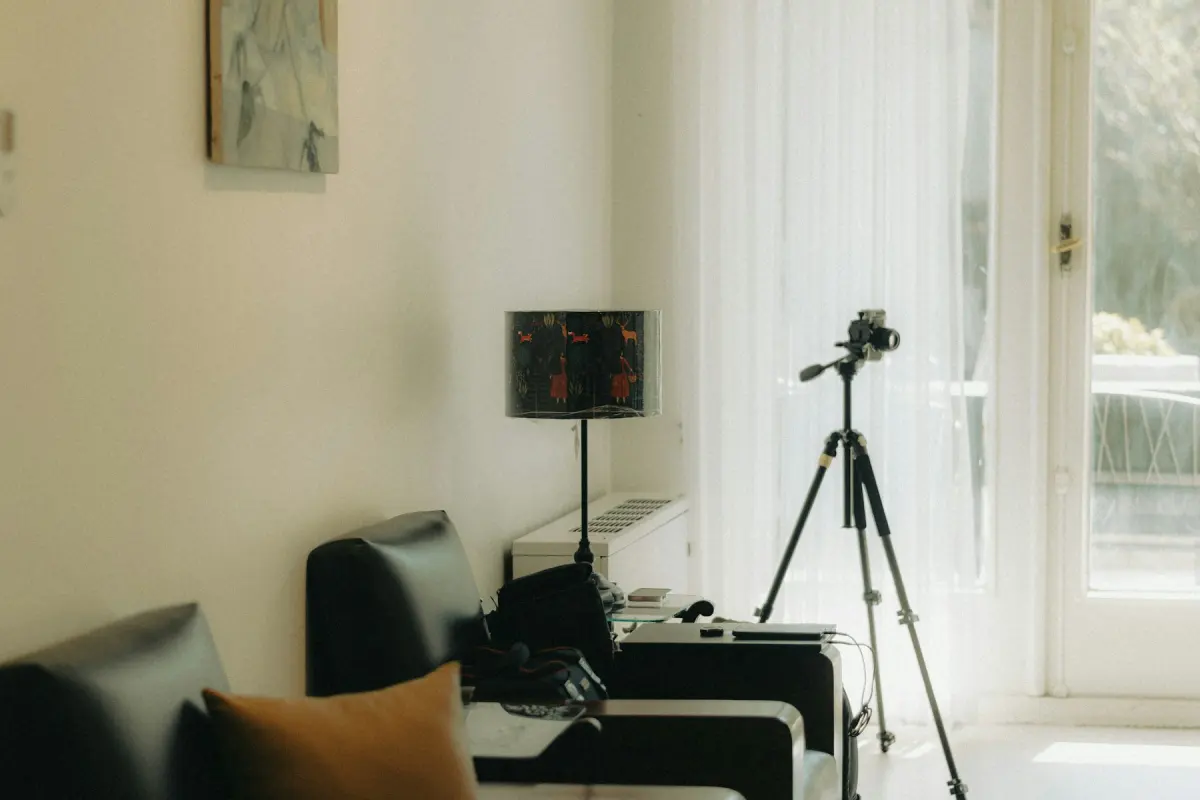
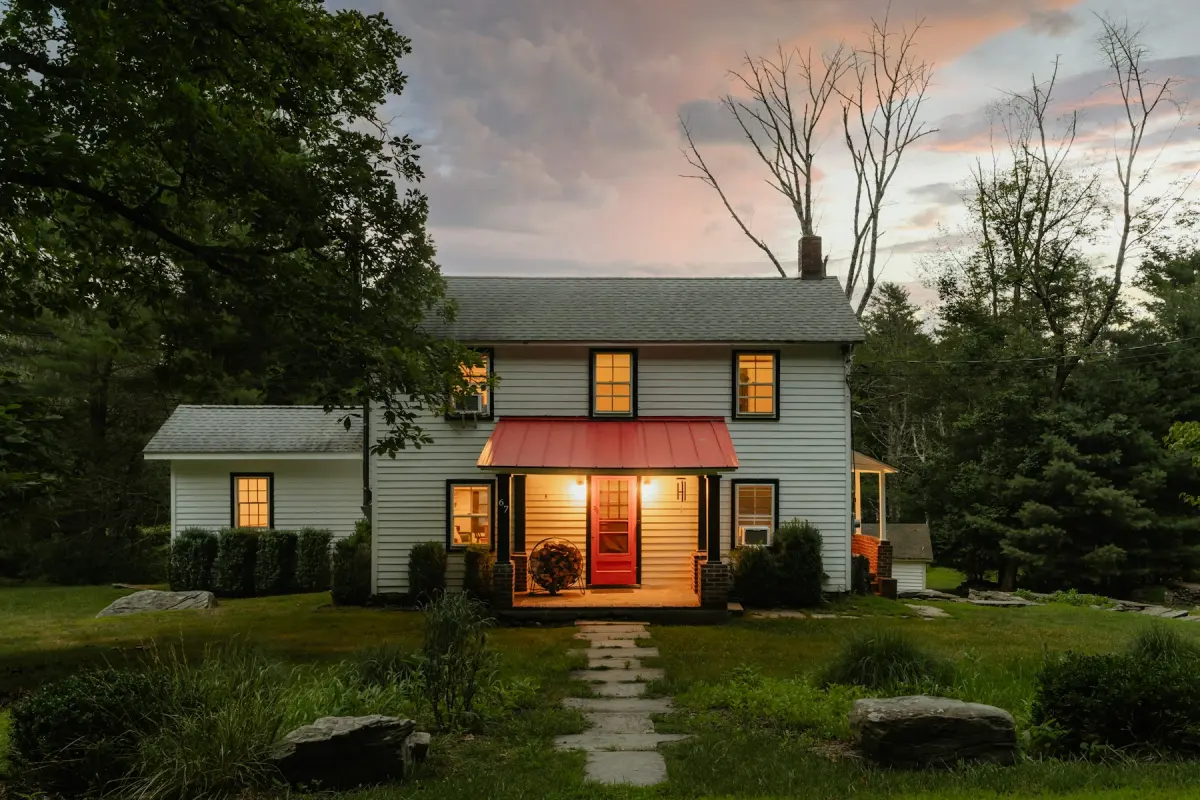
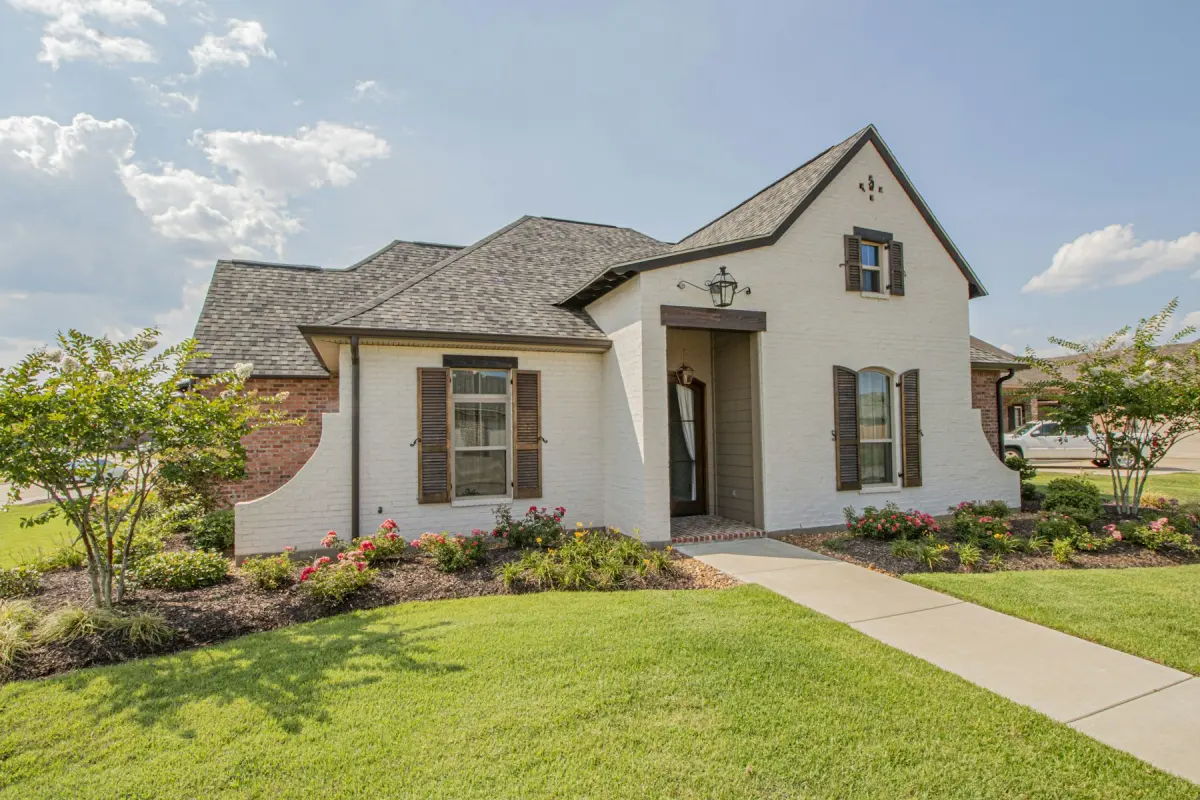
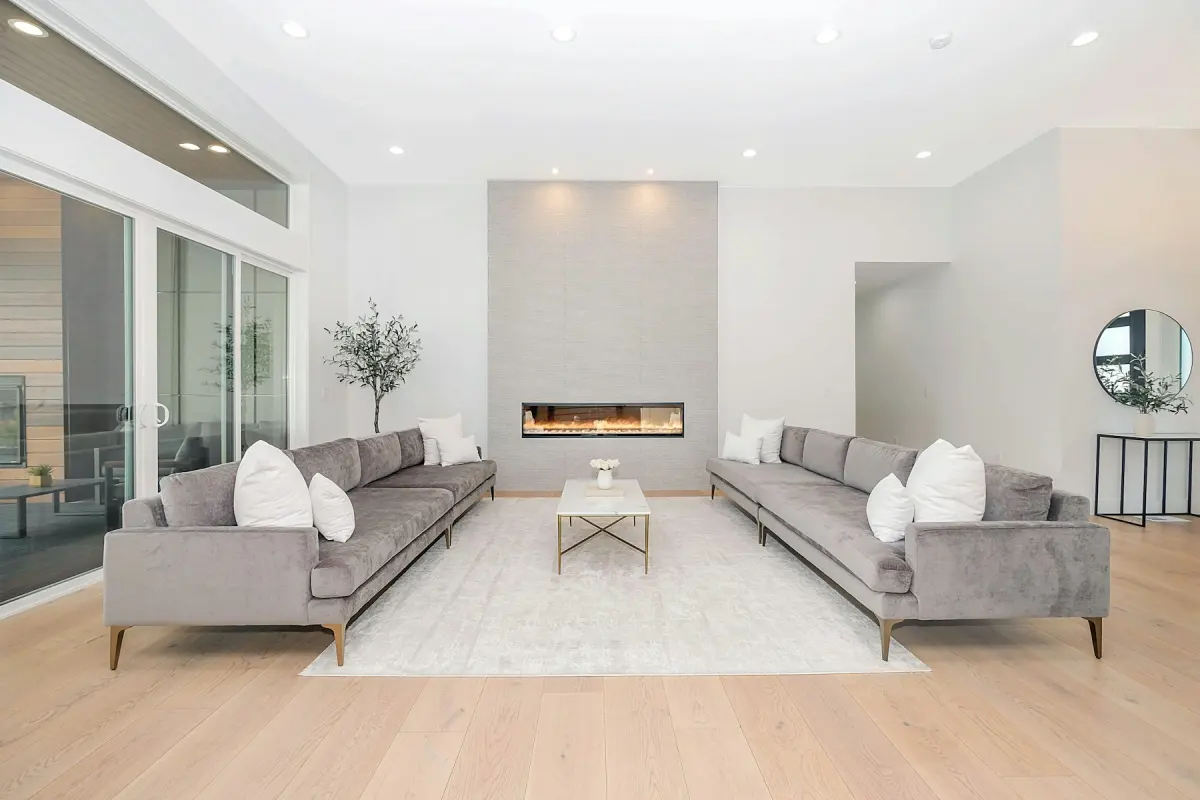 Modern
Recommended settings
| What to do | Virtual staging for empty interiors; Day to dusk, Blue sky or Green lawn for exteriors |
|---|---|
| Room | Living room, or the room type of the frame you upload |
| Style | Modern, unless the agent asks for another of the 12 styles |
| Output size | 4K when the client wants print-size files; 2K for web delivery |
| Note | Optional: pass on the agent's request in a few words, up to 300 characters |
How it works
- 1
Shoot the room empty and level
Frame empty rooms from a corner with the floor in view and the verticals straight. Take one clear lead angle of each room you plan to stage.
- 2
Finish your own edit first
Do exposure blending, color and lens correction in your usual editor, then export a JPG. Uploads can be JPG, PNG or WebP, up to 15 MB.
- 3
Render the frames the client ordered
Upload one frame, pick the mode, and for staging set Room and Style. Press Generate; each frame is its own render.
- 4
Check the result against your frame
Use the before/after slider. Look at window frames, door positions, floor edges and the view, and render again if something moved.
- 5
Deliver edited and original together
Download the result and send it with the unedited frame, named so the agent can tell them apart and disclose the edited ones.
What you can add to a shoot
An agent with a vacant listing needs more than clean photos of empty rooms. With Virtual Staging Maker you can offer four extras from frames you already shot: staged versions of the key rooms, a twilight version of the front exterior, a sky replacement for a gray day, and a lawn fix for dry grass.
It works one photo per render, with no batch upload, so treat it as a per-frame add-on and not as a step for the whole gallery. Your color work, window pulls and perspective correction stay in the editor you already use. No human designer edits the photo here: what the model returns is what you check and deliver.
For occupied homes there are two more modes. Declutter removes loose items such as clothes, cables, dishes and toiletries and keeps the furniture in place. Remove furniture empties the room and leaves built-in things, which gives you an empty frame to stage.
Shoot and export with staging in mind
Staged furniture needs open floor to stand on. Shoot from a corner or a doorway at about chest height, keep the camera level, and avoid frames where a wall or a kitchen island fills the foreground. Choose one lead angle per room, because the furniture will not match across two angles of the same room.
Export size matters less than you might expect. Photos larger than 4096 px on the long edge are scaled down in the browser before upload, so there is nothing to gain from sending a bigger file. The result keeps the aspect ratio of the frame you uploaded and comes back as a JPG in the Output size you chose, 2K or 4K.
Do not upload frames with people in them, such as an agent standing in a doorway. Photos showing people should not be uploaded, and the model is told to produce no people.
The three exterior edits
Day to dusk turns a daytime exterior into a twilight photo: a dusk sky, warm light in the windows and the exterior lights on. Blue sky replaces a gray or dull sky with a clear blue one and a few clouds, and the photo stays a daytime photo. Green lawn makes brown, patchy or bare grass green and tidy.
Each render applies one mode. A frame that needs both a new sky and a greener lawn takes two renders: download the first result and upload it as the next photo. A frame going to Day to dusk does not need Blue sky first, since its sky is replaced anyway.
These edits change weather, light and grass, and nothing else should change. Do not use them, or the Note, to take out power lines, a neighboring building or a busy road. Hiding permanent features misrepresents the property and is against the content policy.
What to tell the agent when you deliver
The agent is the one who has to disclose edited photos to the MLS or portal, and rules differ by MLS, portal, state and country. Make it easy: deliver every edited frame next to its original and say which is which.
For the label you have two options. Tick the checkbox at download to add “Virtually staged” in the lower-left corner, or deliver clean files and point the agent to the free Virtual staging disclosure label tool, which marks up to 20 photos at a time in the browser without uploading them.
Finished photos stay under Your photos for 14 days and are then deleted for good. Download each result when it is ready and keep it in your own archive with the rest of the shoot.
Not the right fit
- Batch editing a full shoot: there is no batch upload and each frame is a separate render. Keep gallery-wide edits in your usual editor and use Virtual Staging Maker for the frames that need staging or an exterior fix.
- Removing power lines, cracks, stains or the neighbor's house: that hides real features of the property and is against the content policy. Deliver those frames as shot.
- Matching furniture across several angles of one room: results are not consistent between photos. Stage the lead angle only.
- A studio that needs an API, team seats or white label delivery: none exist here. Use a service built for that.